One invoice arrives by email, another on paper, a third sits in a supplier's customer portal. And every time, the same routine: download it, rename it, copy the supplier, the amount, the date. Then send the whole lot to your accountant at the end of the month, hoping nothing slipped through.
That routine can go. In AngelStart, your purchase invoices come in without typing, get checked at a glance, and travel on their own to where your accountant expects them. Here is how it works.
Drop your invoices, all at once
On the Purchase invoices page, the "Add invoices" button opens a drop zone. Drag in your files: a PDF, a scan, a photo taken with your phone, or an e-invoice. Up to 50 files at a time, 15 MB each.
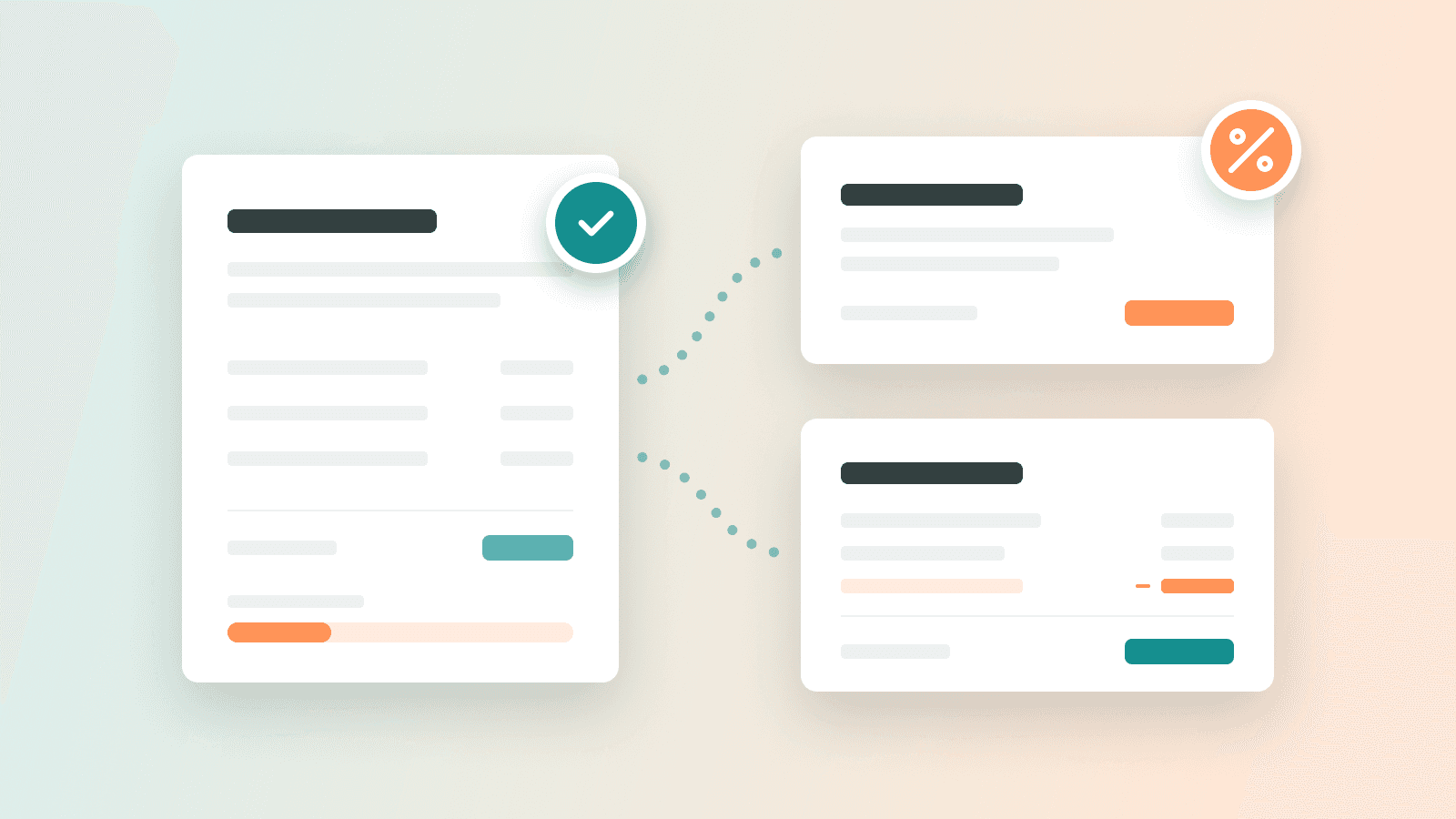
Every invoice lands in the "To review" tab. As long as it stays there, it is left out of every total: nothing counts until you say so.
Duplicates are watched for you:
- the same file dropped twice is set aside straight away;
- an invoice that looks like another one (same supplier, same amount, same date) is flagged, without ever blocking you.
Angel reads the invoice for you
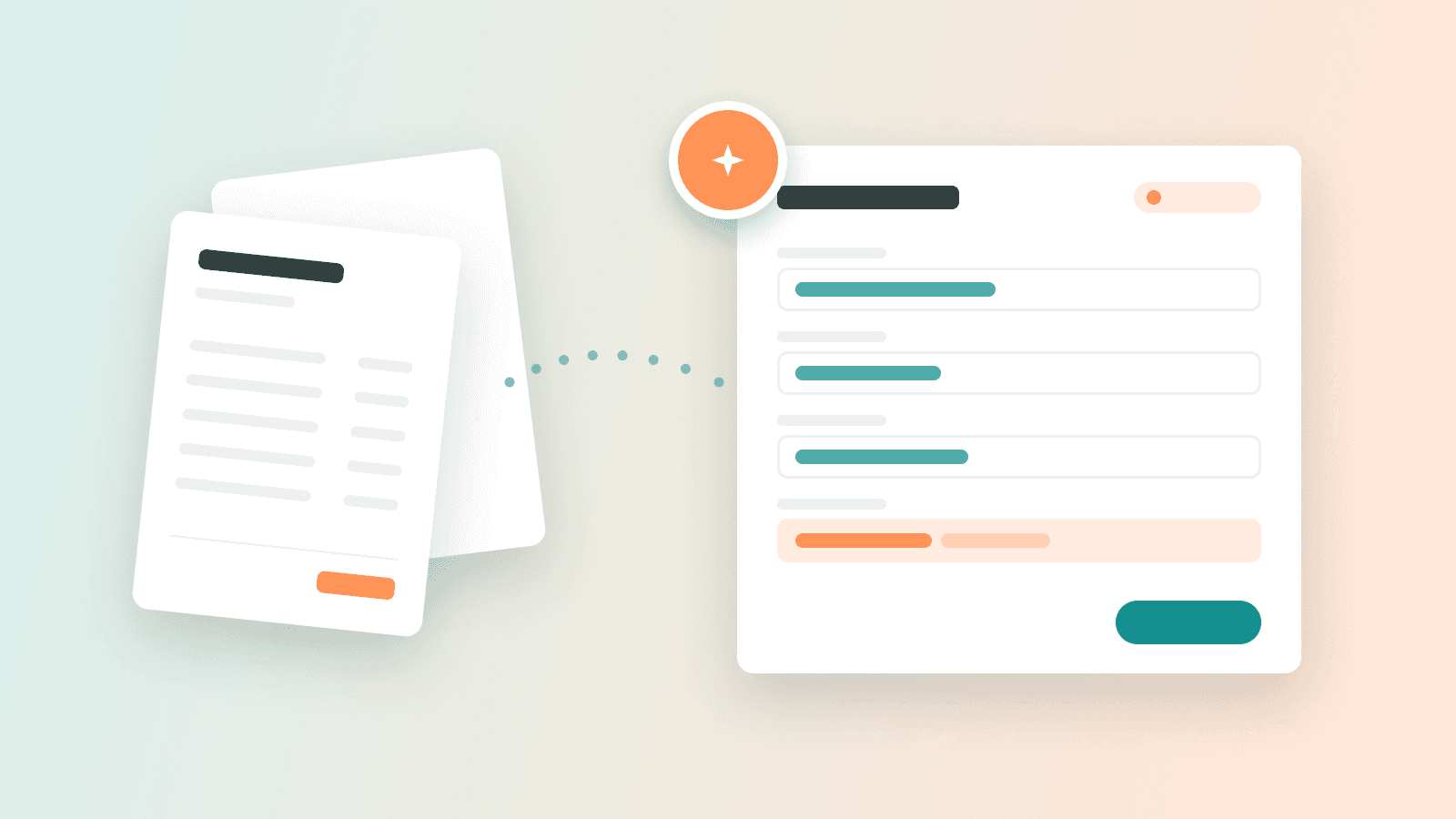
A PDF, a scan or a photo is read automatically. Supplier, number, date, due date and amounts fill themselves in within seconds. You can watch it happen: the screen shows "Reading", then the fields fill in before your eyes, no page reload needed.
An e-invoice arrives already filled in: its details are read straight from the file. If that format is still unclear to you, our guide e-invoicing is becoming mandatory sums it up.
One rule drives the reading: an empty field beats a wrong figure. Anything read without certainty stays empty and shows as "To complete". And if the amounts read do not add up, they stay empty rather than giving you an inconsistent total. Angel reads; you validate.
Check, validate, done
Open an invoice from the "To review" tab: the document on one side, what Angel read on the other. If you dropped a single invoice, this screen opens right away. Fix what needs fixing, file it under a category if you like, then click "Validate the invoice".
Once validated, it joins your purchase invoices. The supplier is matched in your address book if they are already there; otherwise their record is created. Until it is validated, a dropped invoice can be deleted in one click.
The same inbox works for what you invoiced elsewhere. An invoice issued with another tool, or a credit note, can be dropped in the "To review" tab of your sales invoices, and joins the others once validated.
Forward your invoices by email
Most invoices arrive by email. So each company gets its own receiving address in AngelStart. You will find it under Settings › Invoice transmission, "Receive" tab, and copy it in one click.
Three ways to use it:
- forward a supplier's email by hand;
- set up a rule in your mailbox that forwards your suppliers' emails automatically;
- give the address straight to your suppliers.
Each attached invoice lands in "To review" and is read automatically, just like a drop. AngelStart keeps the invoice, not the message.
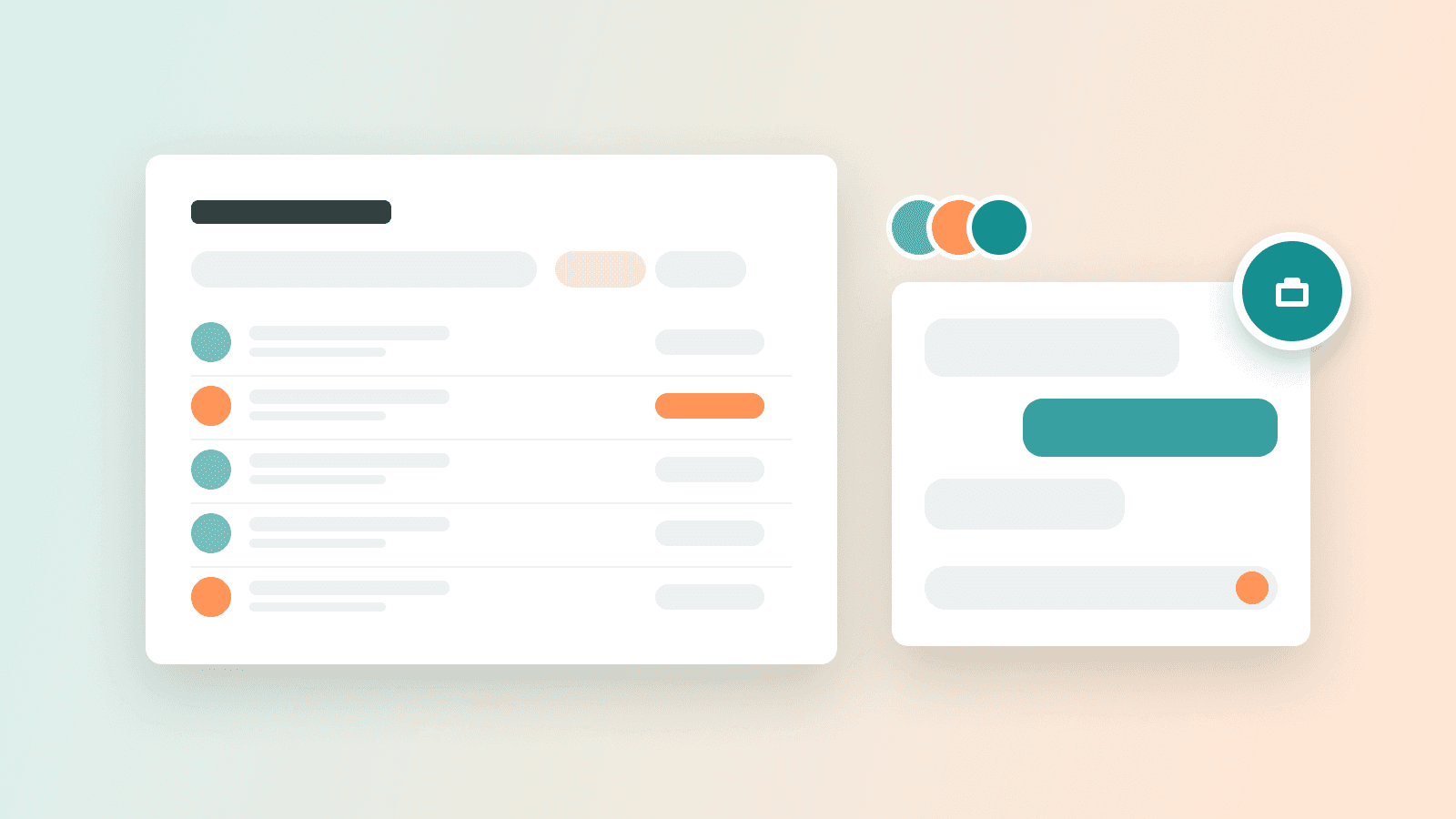
You always know what came in. The panel for your address lists the latest emails received: how many invoices were added, how many were ignored, and why (no attachment, format refused, file too large, duplicate). And in the morning, if new invoices arrived by email, a summary is waiting in your inbox. Nothing new, no email.
Your address getting passed around too much? Change it in one click, and the old one stops receiving anything.
Your invoices reach your accountant on their own
What is left is passing them on. Most accounting software gives you a receiving address to email invoices to. AngelStart uses it for you.
Under Settings › Invoice transmission, "Send" tab, pick your accountant's software, then paste its receiving address. The screen shows you where to find it, and if you do not have access, your accountant can give it to you.
From then on, every invoice you validate in "To review" goes out on its own, original file untouched. When you switch it on, you can also send the ones already validated this month.
You stay in control:
- a purchase invoice's detail shows which software it is in, and since when;
- if a send fails, you are told, and you resend in one click or fix the address;
- every new address, and every change, is confirmed to you by email;
- you can stop automatic sending whenever you like.
In practice, one invoice from Monday to Tuesday
On Monday, your equipment supplier emails you their invoice. Your mailbox forwards it automatically to your AngelStart address. On Tuesday morning, an email tells you an invoice has arrived. You open "To review": supplier, number, date and amounts are filled in. You check, you validate. The invoice joins your purchases and goes to your accountant's software.
The receipt from lunch with a client? A photo, a drop, and the same path.
You typed nothing, renamed nothing, forwarded nothing. And your accountant gets complete invoices as they come, instead of a pile at the end of the month.